The app is organised into five places down its left-hand rail: Now, Body,
Regimen, Knowledge and System. Below is each part in turn: what it does, what data it
needs, whether it needs an AI key, and what it sends, if anything.
Works without a keyNeeds your Anthropic keySends something off your Mac
Every screenshot shows an invented demo profile, not a real person.
Now
Findings and today's check-in
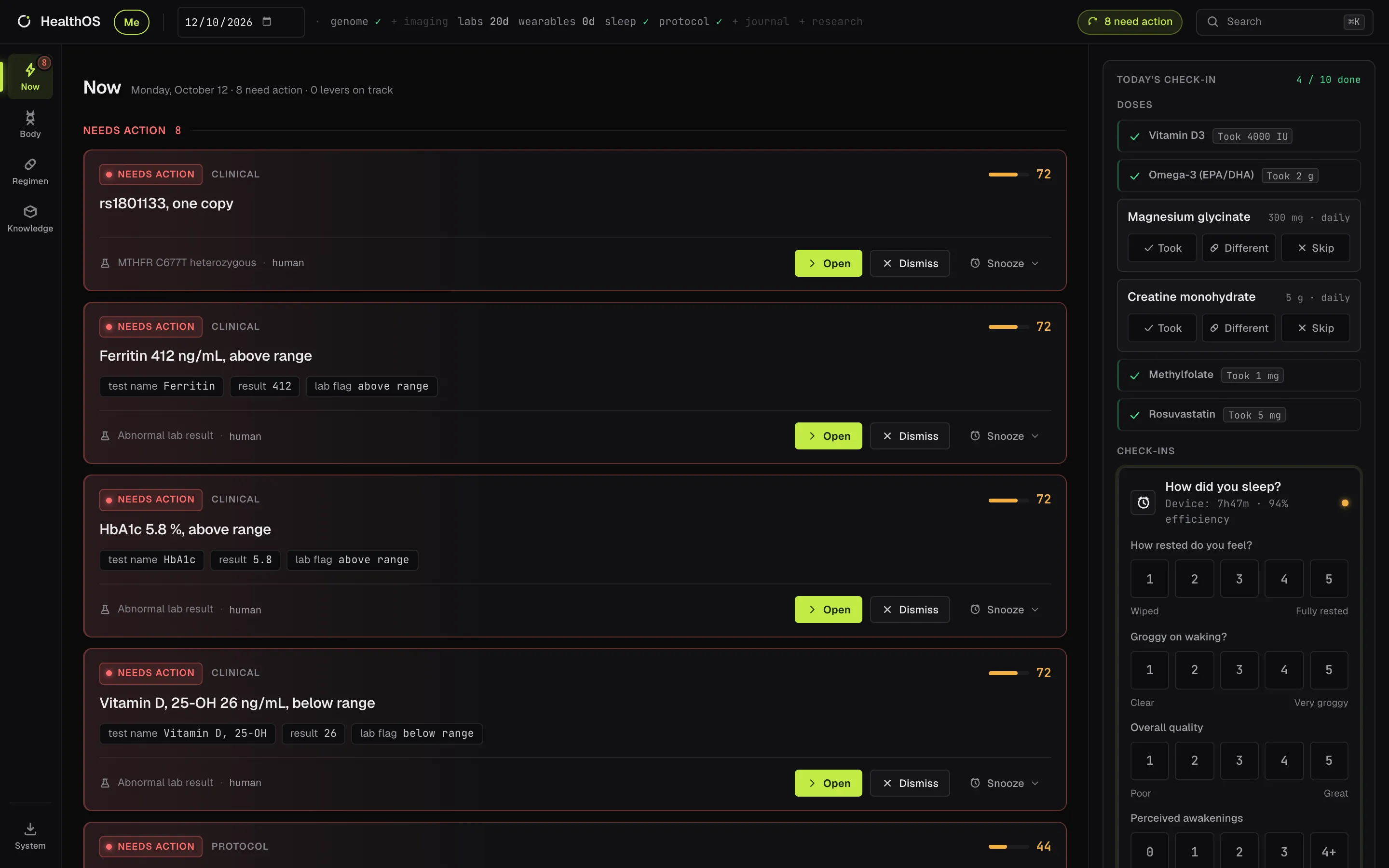
Now is the home screen. Every check HealthOS runs across your labs, genome, sleep,
wearables and regimen lands here as one ranked list of findings, with today's check-in beside it.
Needs
Any data you've added
AI key
Not needed
Sends
With a key: each new finding's details, to write its title
Find it
Now, at the top of the rail
Now
Ranked, not chronological
Each finding has a tier — safety, clinical, protocol or nice to
have — and a score bar. Safety items, like a dose you haven't confirmed, always sit on top.
A count of what needs action shows in the top bar on every screen.
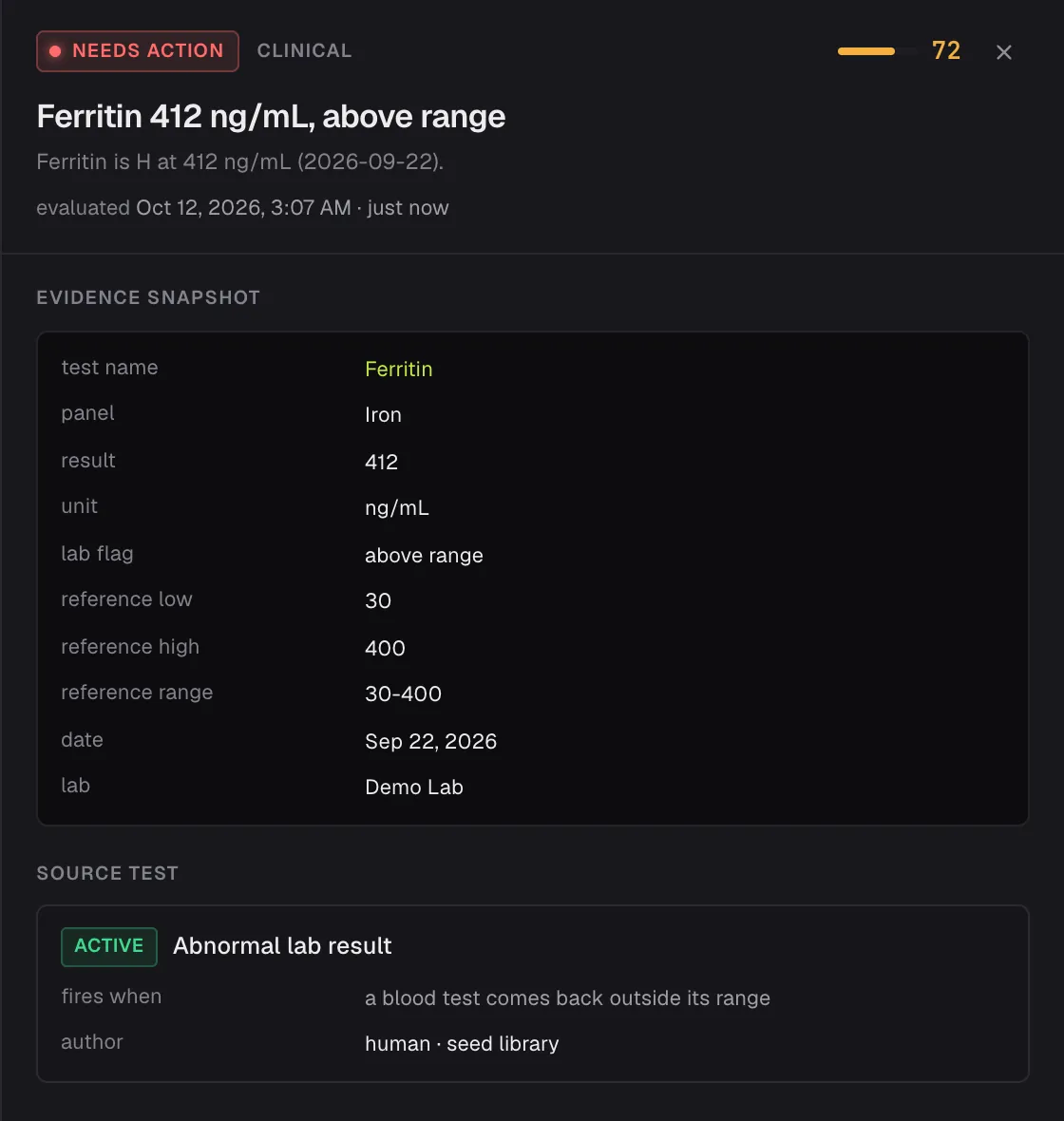
What fired it, exactly
Open a card to see its evidence: the value, unit, reference range, date and source, plus the rule
that produced it, whether that rule is active, and who wrote it. Nothing on the card is a summary you
can't trace back.
Decide, and keep a record
Mark a finding Acted, Dismiss it, Snooze it or Defer it, with an optional
reason that's saved with the decision. For a lab result you can set a recheck date.
Today's check-in
Tick off each dose (Took, Different or Skip) and answer a few short questions
about last night's sleep. Your watch's numbers for the night are shown alongside, so you can compare
how you feel with what was measured.
How fresh is your data
The top bar shows each source at a glance — genome, imaging, labs, wearables, sleep,
protocol — with whether you have it and, for labs and wearables, how many days old the newest
data is.
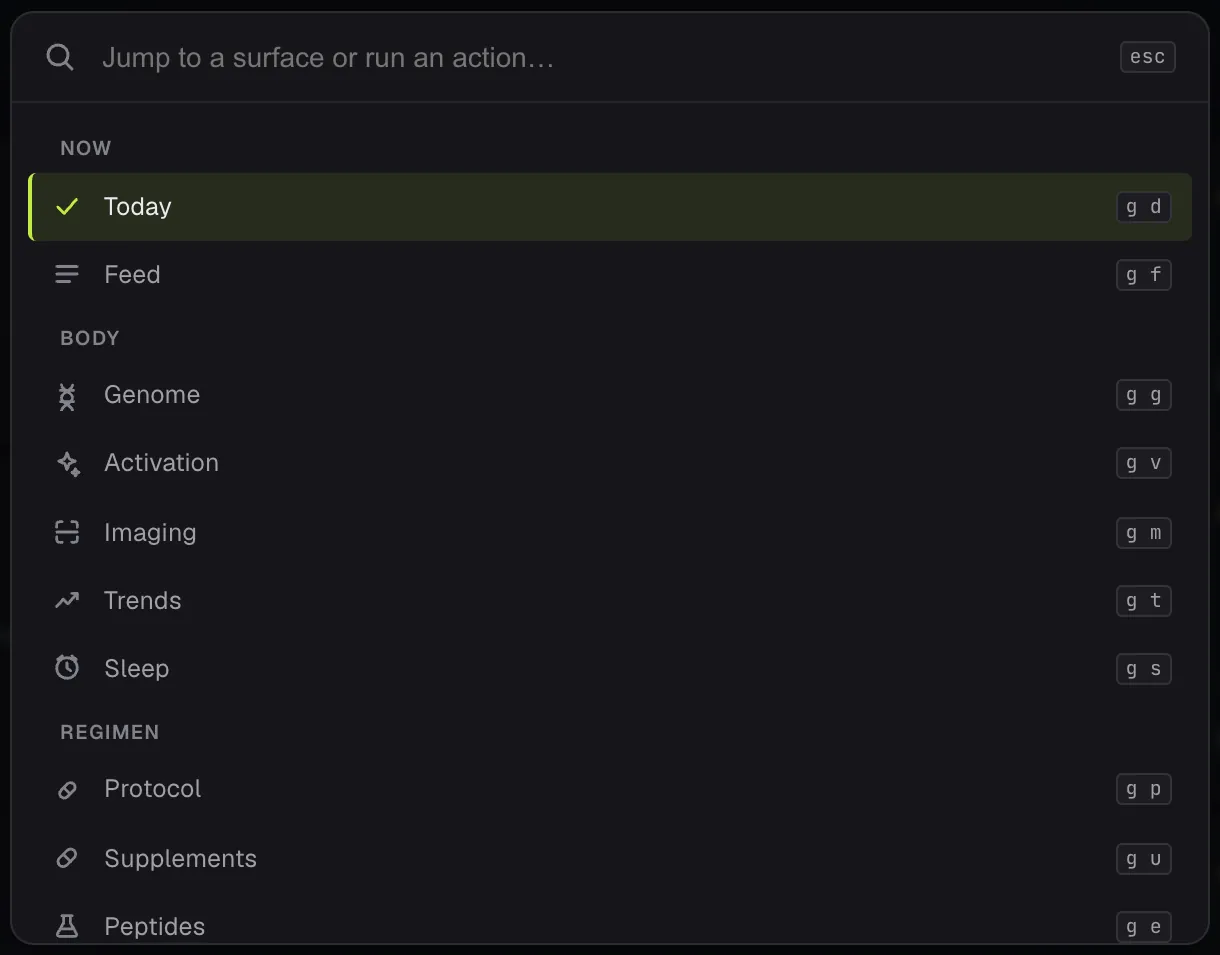
Jump anywhere
Press ⌘K to open a command palette and go to any screen, or use
two-key shortcuts such as g t for Trends.
Suggestions from the chat
When the chat suggests something you could do, like adding an item or rechecking a test, the suggestion
also waits on Now until you apply or dismiss it.
Finding detail
Command palette
Body
Genome
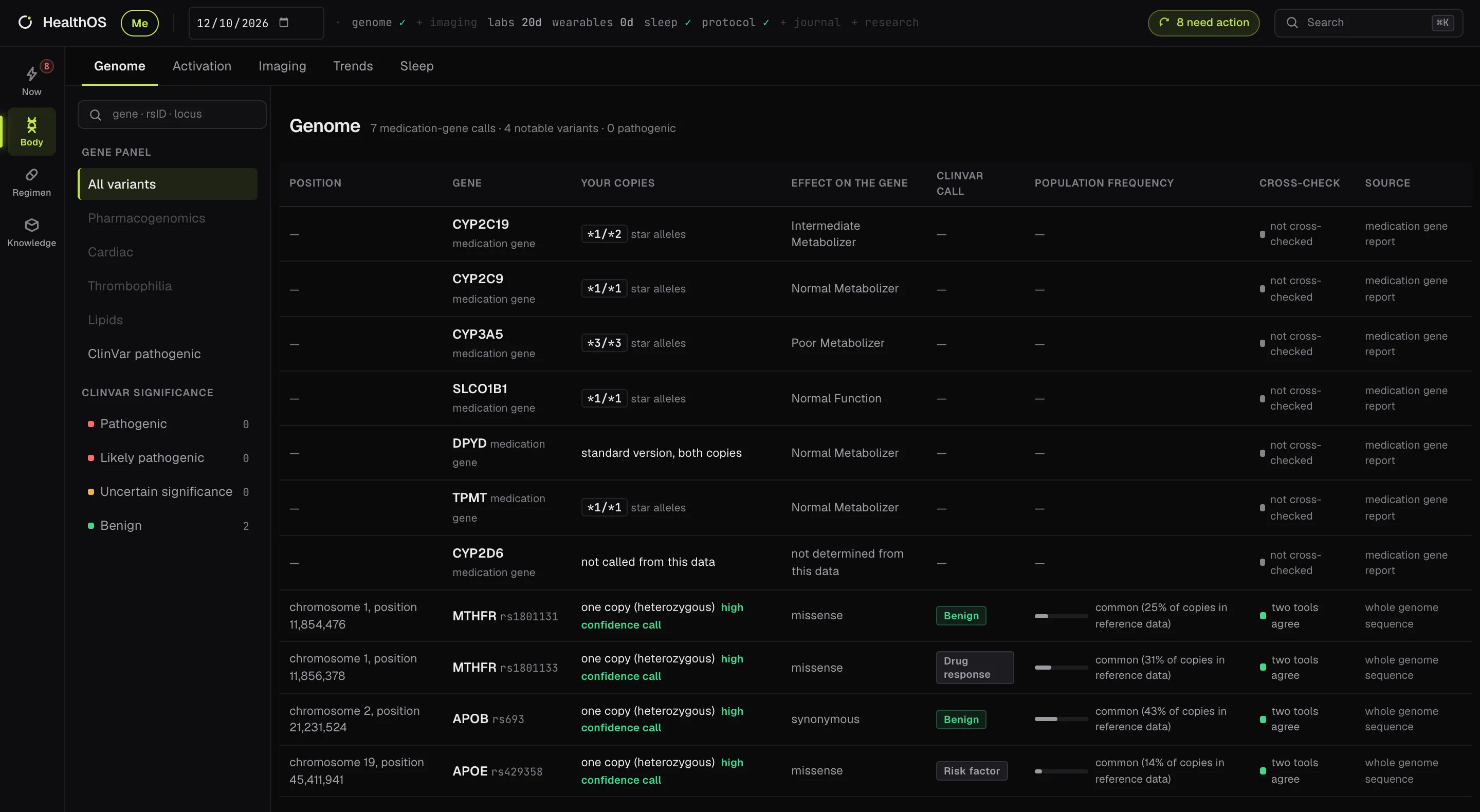
Load a whole-genome sequencing file and HealthOS reads it in two stages: basic
findings straight away, and an optional deep read that annotates every variant and works out how your
genes affect medications.
Needs
A whole-genome .vcf.gz on GRCh37/b37
AI key
Not needed
Sends
Nothing. The deep read downloads public reference files once
Find it
Body → Genome
Body · Genome
Demo profile, with simulated results from the optional deep read.
Straight away
The file is read on your Mac and checked against a built-in set of genetic rules, such as
MTHFR C677T. Findings show up on Now with how confident the call is, based on the sequencing
quality and depth at that spot.
The deep read (optional)
Under Settings → Genome (advanced), a one-click setup installs the tools and downloads
the reference data, then annotates every variant with two independent tools and shows where
they agree. Each variant gets its ClinVar label and how common it is in the general population.
Disease-linked variants go to the feed. It needs Docker and tens of gigabytes of downloads, which take
hours, so it's a sit-down job.
Medications and your genes
The deep read also produces a medication-gene report: your type for genes like CYP2C19, CYP2C9
and SLCO1B1, and the published guidance that goes with it. A dosing note only reaches your feed when
that medication is actually on your protocol. A few genes can't be read reliably from this kind of
data, CYP2D6 for example, and they're shown as not called rather than guessed.
Browse and search
Search by gene, rsID or position, or pick a panel (medication genes, cardiac, clotting, lipids,
disease-linked). A 23andMe-style chip file isn't supported: it's a different technology and miscalls.
Activation
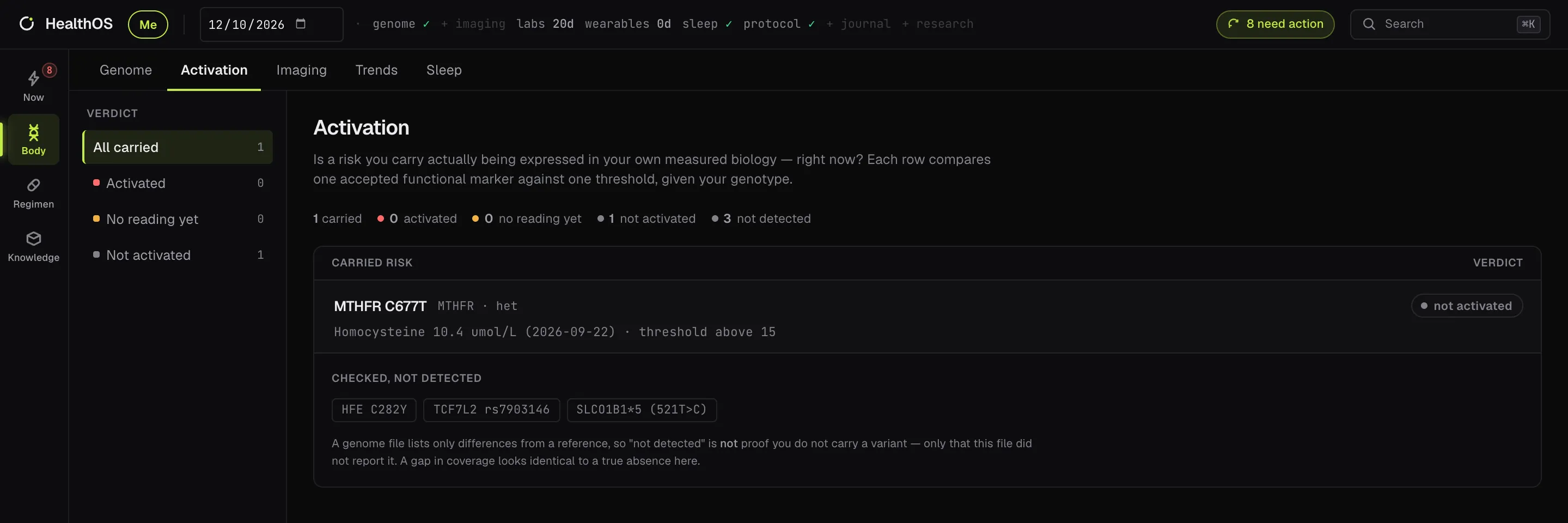
A genetic risk is only half the story. Activation asks whether a risk you carry is
actually showing up in your own measured biology, right now, by comparing one accepted marker
against one threshold for your genotype.
Needs
A genome file and blood tests
AI key
Not needed
Sends
Nothing
Find it
Body → Activation
Body · Activation
Each risk you carry gets one of three verdicts: activated, not activated, or no
reading yet when the marker hasn't been measured. Most days every row reads not activated, which is
the healthy resting state rather than an empty screen.
Risks the app looked for but didn't find are listed as checked, not detected, with a plain
warning: a genome file only lists differences from the reference, so "not detected" isn't proof you
don't carry something.
Imaging
Upload MRI, CT, X-ray, ultrasound and some eye scans and keep each body part's
scans together over time. With a key, every upload also gets an AI second read that points out things worth
a closer look.
Needs
Scan files: PNG, JPEG, HEIC, PDF or DICOM
AI key
For the second read only
Sends
With a key: the scan as pictures, and any report PDF, on upload
Find it
Body → Imaging
Upload a scan
Settings · Imaging read depth
Uploading
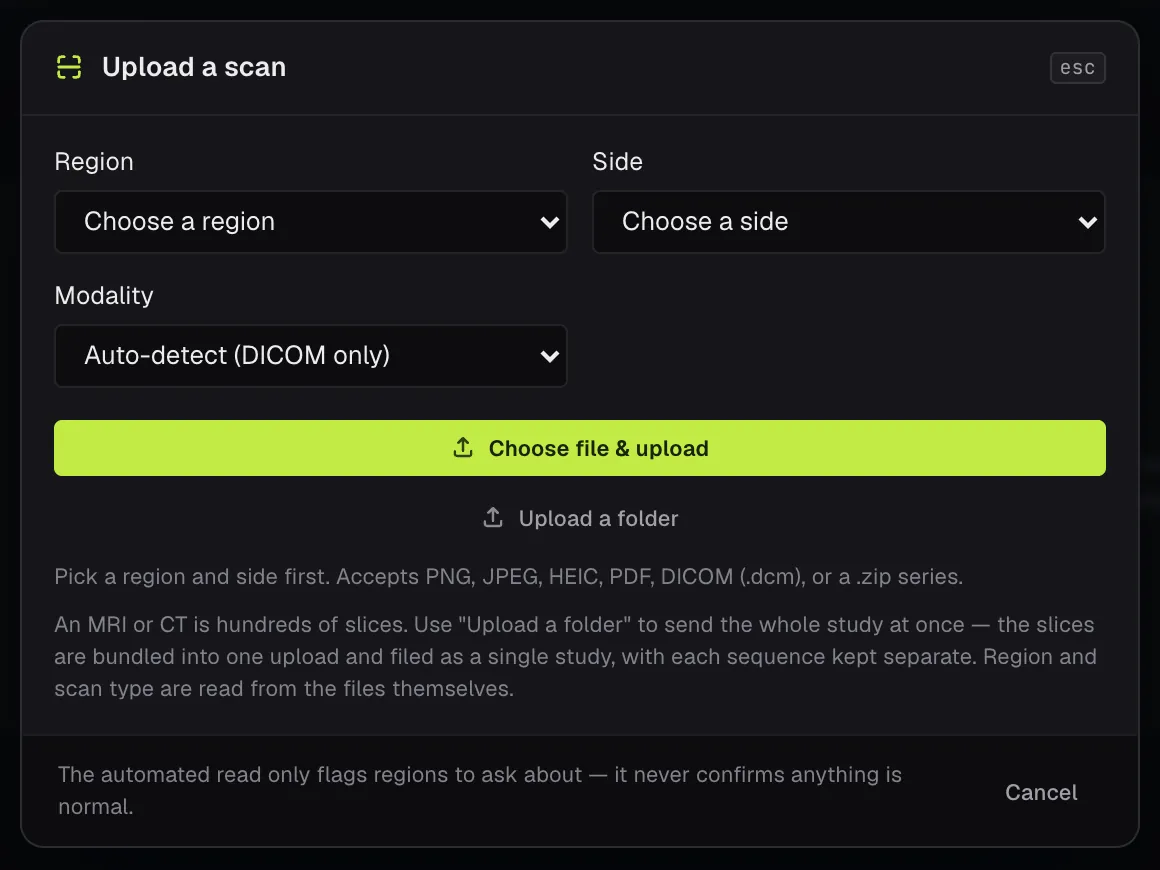
Pick the body region and side, then a file: a single image or PDF up to 30 MB, or a DICOM
.dcm or .zip series up to 1 GB. Upload a folder sends a whole study
from a hospital disc at once, keeps each sequence separate, and reads the region and scan type from
the files themselves.
The second read
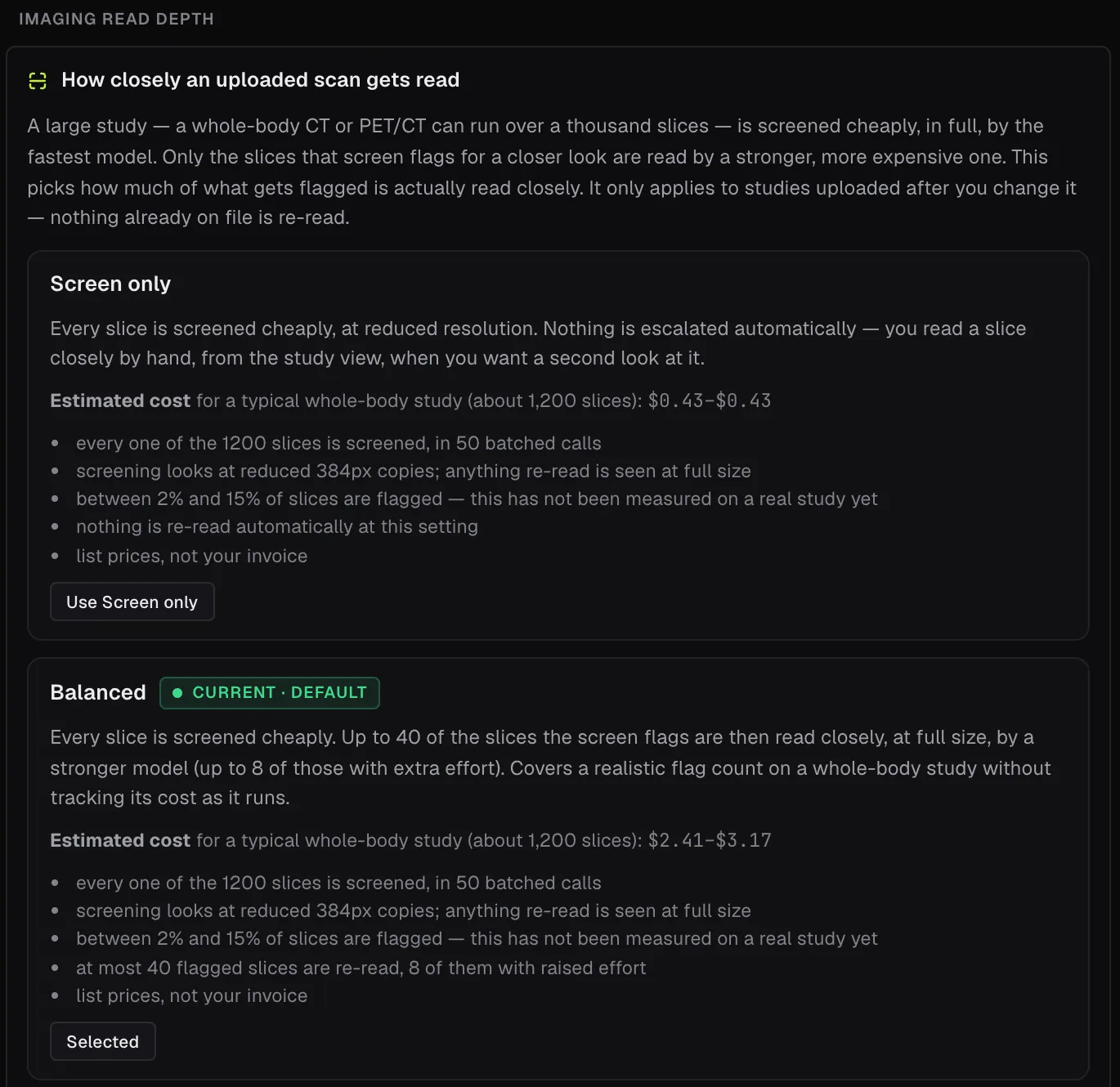
For a large study, every slice is screened at reduced size by a fast model, and only the
slices it flags are read closely at full size by a stronger one. The study shows both counts,
and lists any flagged slices the close read didn't reach, so "not looked at" is never mistaken for
"clear".
You choose how deep
Settings → Imaging read depth has three options, each with a cost estimate: Screen
only, Balanced (the default: up to 40 flagged slices read closely) and Thorough (up
to 200). It applies to new uploads; nothing already on file is re-read.
Never an all-clear
The read only ever adds suspected flags for your doctor to confirm. An empty list doesn't mean the
scan is normal. A radiology report PDF uploaded for the same study is transcribed and shown beside it.
Switches the read off: leaving the type on Auto-detect for a plain image (it only
works for DICOM), choosing Other as the body region, or uploading an iPhone HEIC photo, which is stored but
never looked inside. Some eye scans (OCT angiography, slit lamp, visual field) are stored but not read; the
upload form says so.
Trends
Every blood test you've had, and every daily number from your watch and phone, as one
time series each: where it is now, how it's moving, and how it compares with your own usual value.
Needs
Blood tests; Apple Health or Health Auto Export
AI key
Only to read a lab report
Sends
With a key: a lab report you upload, to be read
Find it
Body → Trends
Body · Trends · Labs
Labs
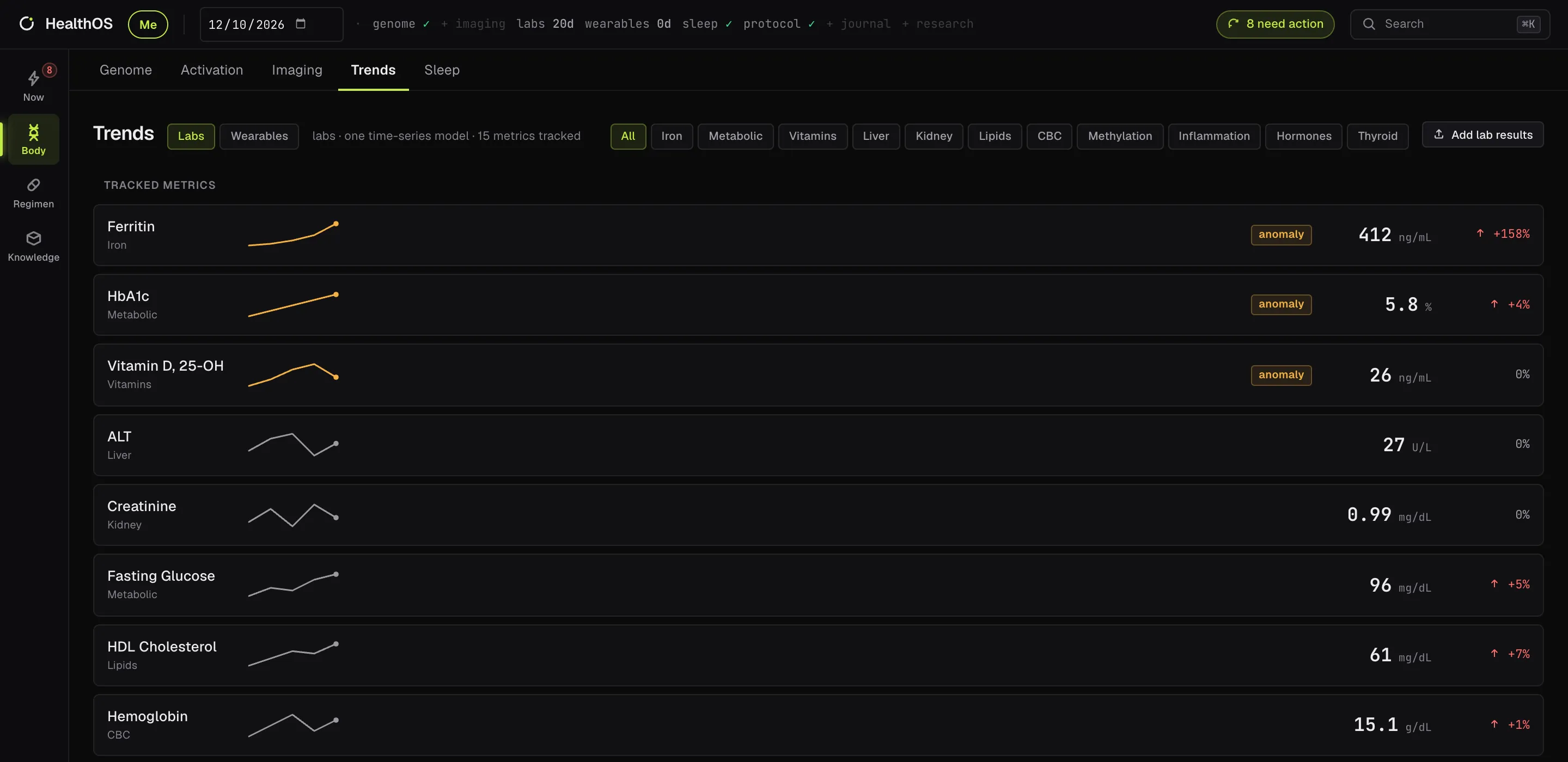
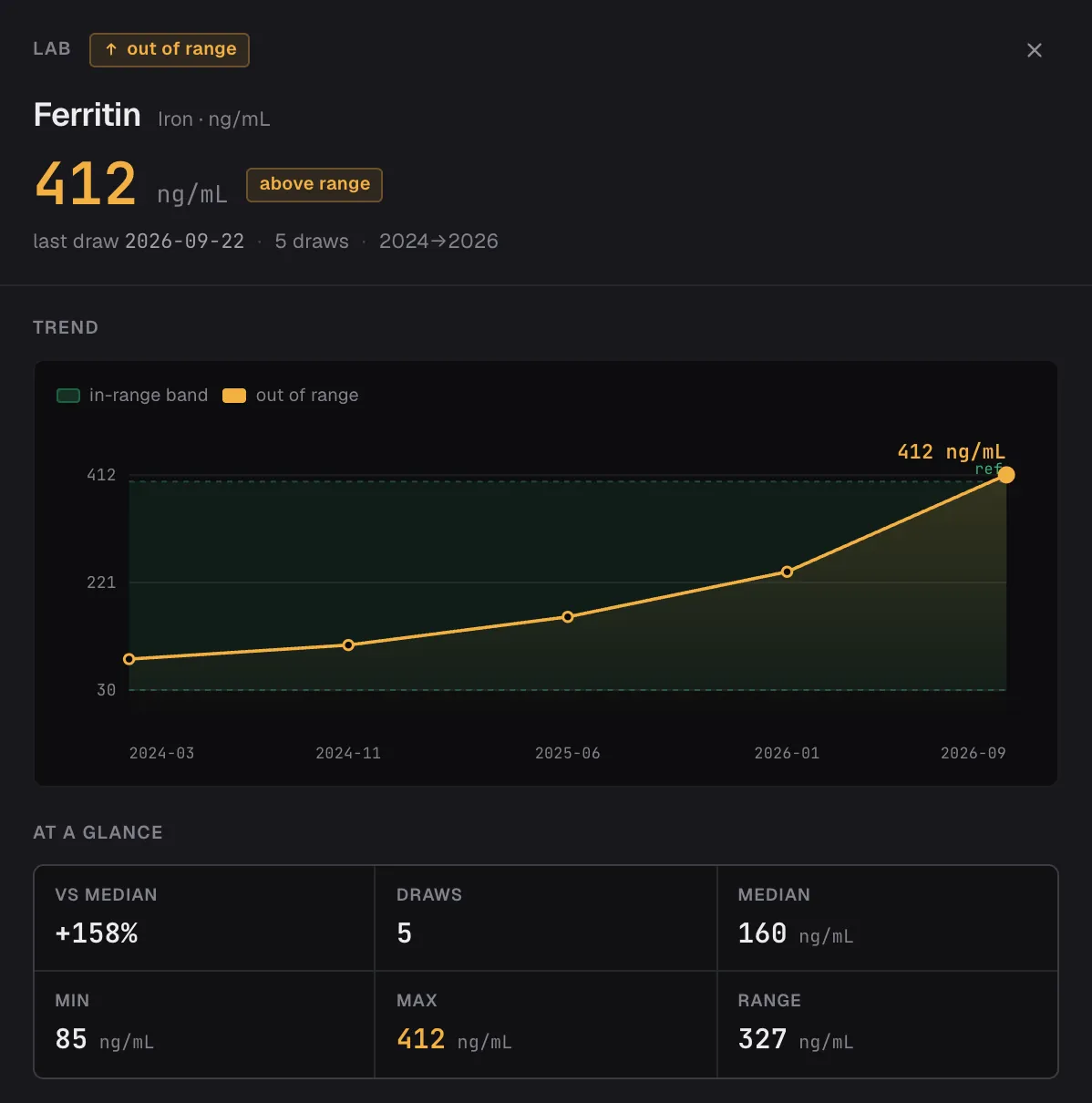
Each test shows a sparkline, the latest value and how far it sits from your median, with tests outside
their range listed first. Filter by panel, then open one for a chart against its in-range band, the
summary numbers, and the full history of draws with the lab, flag and range for each.
Trend findings
A test that keeps rising or falling across draws becomes a finding of its own, even while each value is
still in range. A change of units between labs is flagged as a unit change rather than read as a
dramatic drop.
Adding results from a report
Add lab results takes the lab's PDF or photos of a printout. Claude reads it, then you check
every row against the document shown beside it. Rows already on file are left unticked, a unit that
disagrees with your history must be settled first, and odd or illegible values are flagged. Nothing is
saved until you approve, and values that came from a document stay labelled that way everywhere.
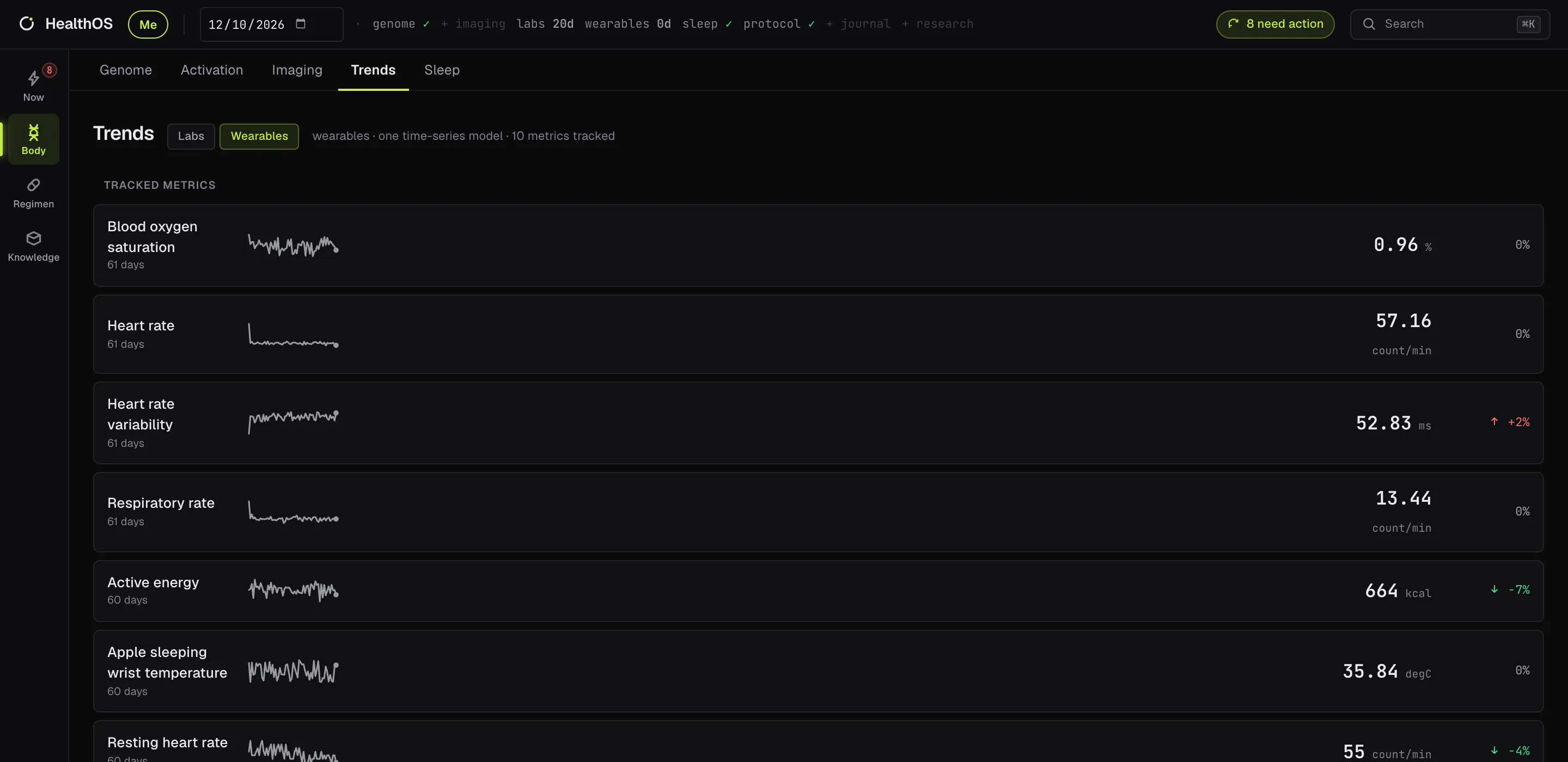
Wearables
The Wearables tab does the same for daily numbers from Apple Health: steps, resting heart rate, heart
rate variability, blood oxygen, breathing rate, active energy, wrist temperature, walking distance and
more.
One test, opened
Body · Trends · Wearables
Sleep
A detailed look at each night from your Apple Watch: the stages, every overnight signal on
one timeline, and how the night compares with your own recent weeks.
Needs
Apple Watch sleep, best via Health Auto Export
AI key
Not needed
Sends
Nothing
Find it
Body → Sleep
Body · Sleep · Tonight
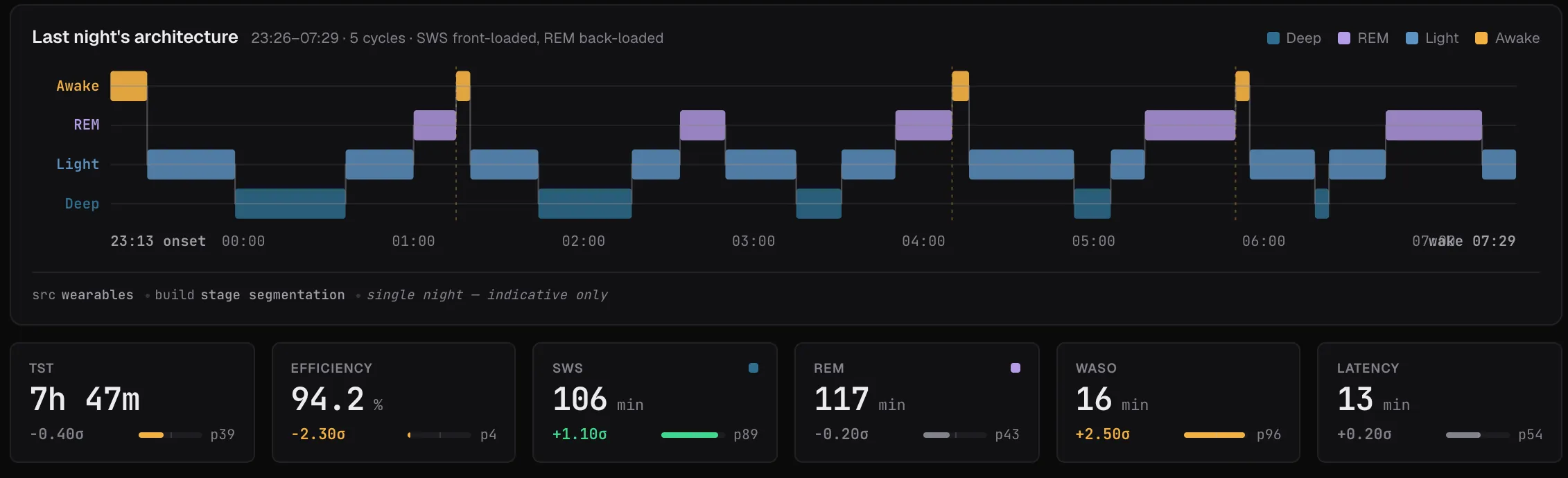
Tonight
The night's stages (deep, REM, light and awake) as a hypnogram, with total sleep, efficiency, deep
sleep, REM, time awake after falling asleep, and how long it took to fall asleep. Each number is
placed against your own last four weeks rather than a population average.
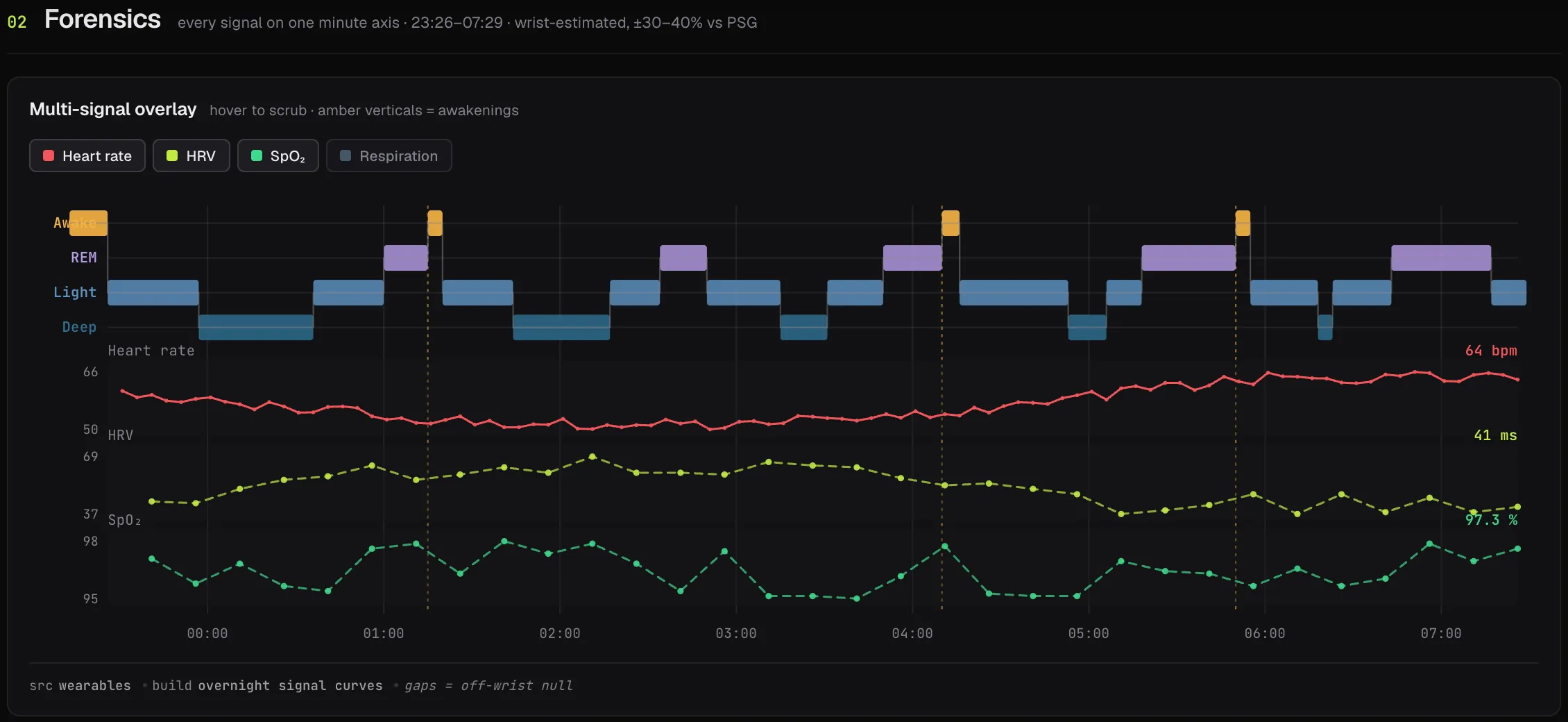
Every signal on one axis
Heart rate, heart rate variability, blood oxygen and breathing rate are drawn minute by minute over
the stages, with awakenings marked, plus a list of when you woke and from which stage.
The longer view
How regular your sleep and wake times are, the sleep debt you've built up over two weeks, how far your
heart rate drops overnight, and an actogram of when you actually slept across recent weeks.
Honest about the source
Sleep stages from a wrist are estimates, roughly 30-40% off a lab sleep study, and the screen says
so. Single nights are indicative; the week-scale trends are what to trust. The minute-by-minute curves
need Health Auto Export set to minute-level exports.
Body · Sleep · Forensics
Regimen
Protocol
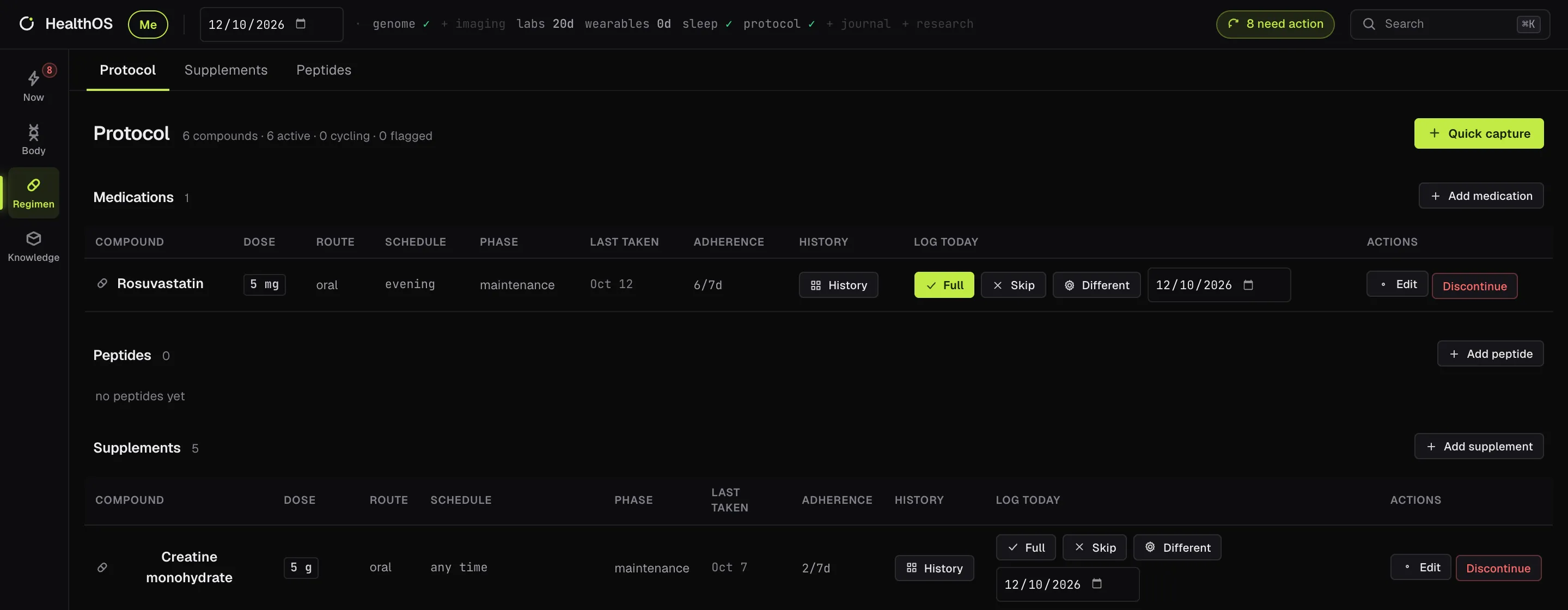
Your medications, supplements and peptides in one list, with what you actually took each
day, so the feed can tell you when something's been missed and how the week went.
Needs
Nothing: add items in the app
AI key
Not needed (logging by chat needs one)
Sends
Nothing
Find it
Regimen → Protocol
Regimen · Protocol
Log what really happened
For each item, mark a day Full, Skip or Different (a different amount), for
today or any earlier day. Adherence over the last week shows on every row.
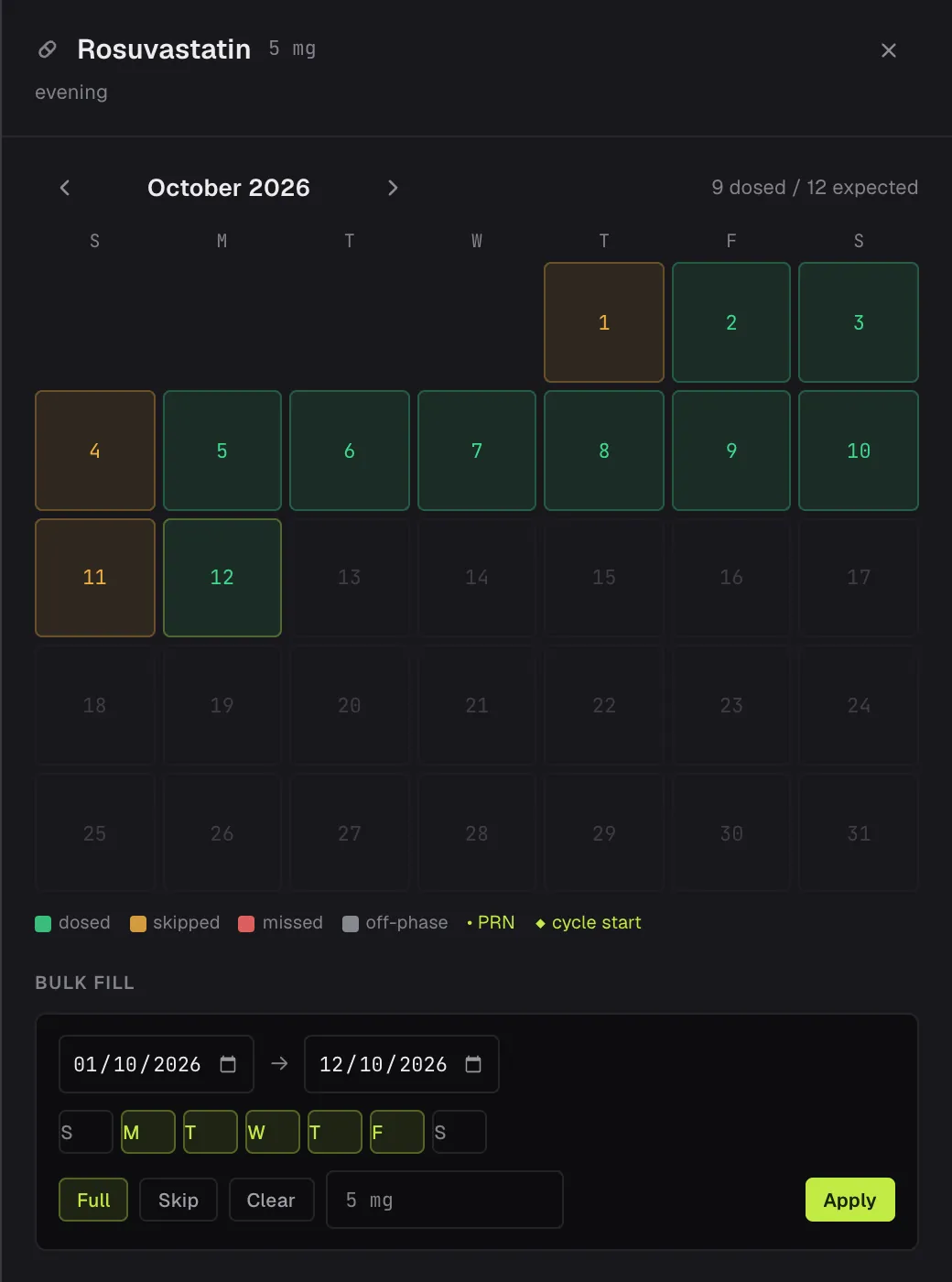
The history calendar
Open History for a month view of doses, skips, misses and days off a cycle, and fill a whole
date range at once, by weekday, when you're catching up.
Cycles and as-needed doses
Items can run on a cycle (so many days on, so many off) or as needed with a budget, and the feed
tells you when a phase changes or you go over budget.
Safety first
If an item's dose or route isn't confirmed, a safety finding sits at the top of Now until you confirm
the reference dose. Missed doses roll up into one finding listing everything overdue, rather than one
card each.
Changes are dated
Add, edit or discontinue items as things change. A dose change is recorded as a dated change, not an
overwrite, so the history stays true.
Or just say it
With a key, tell the chat "I started creatine, 5 g daily" or "skipped magnesium yesterday" and it
records it, then repeats back what it recorded.
History
Supplements
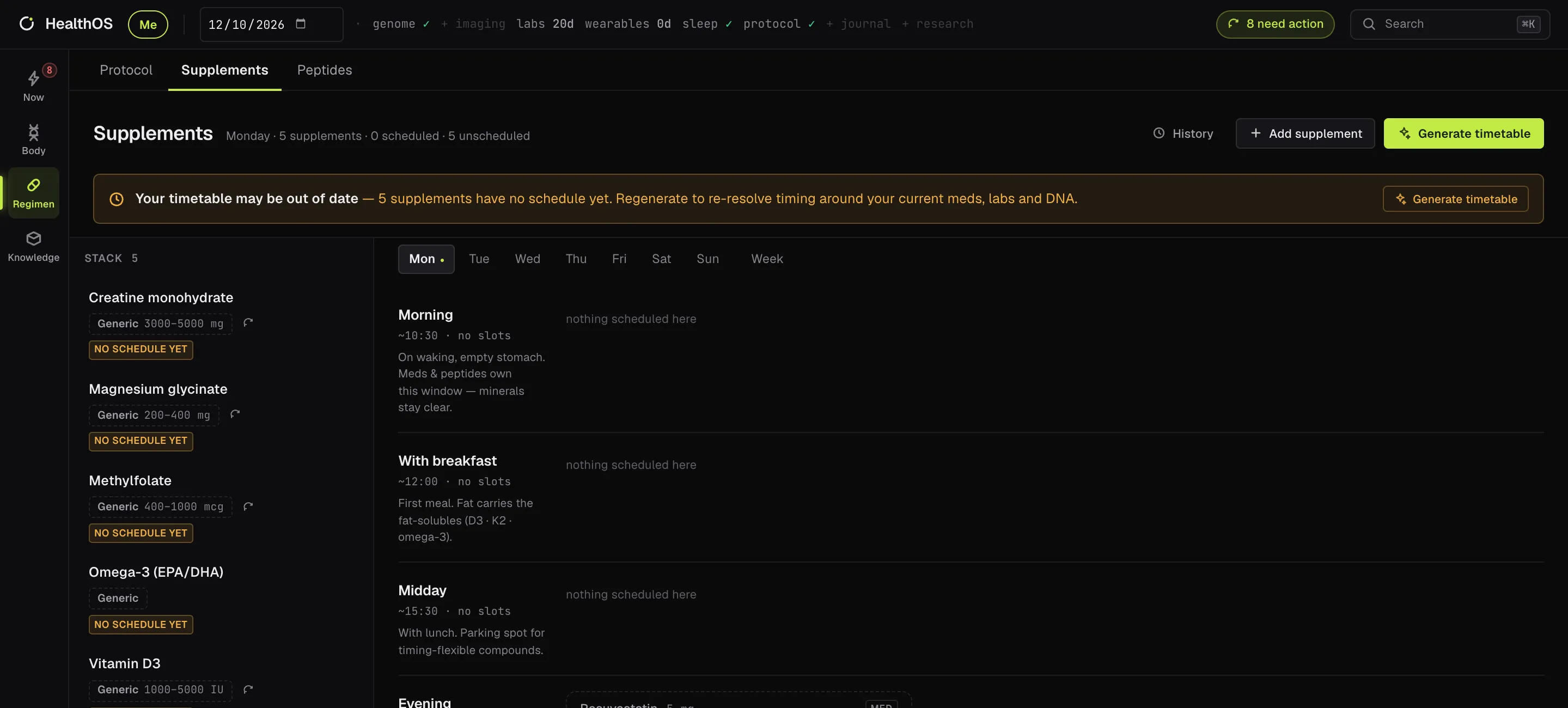
A daily timetable for what you take: which slot each item belongs in, from first thing to
bedtime, worked out around your medications, labs and genetics.
Needs
Items on your protocol
AI key
To build the timetable
Sends
What you take, plus timing notes; not raw lab values or your genome file
Find it
Regimen → Supplements
Regimen · Supplements
The screen tells you when the timetable is out of date, for example
after you add something, and Generate timetable rebuilds it.
Peptides
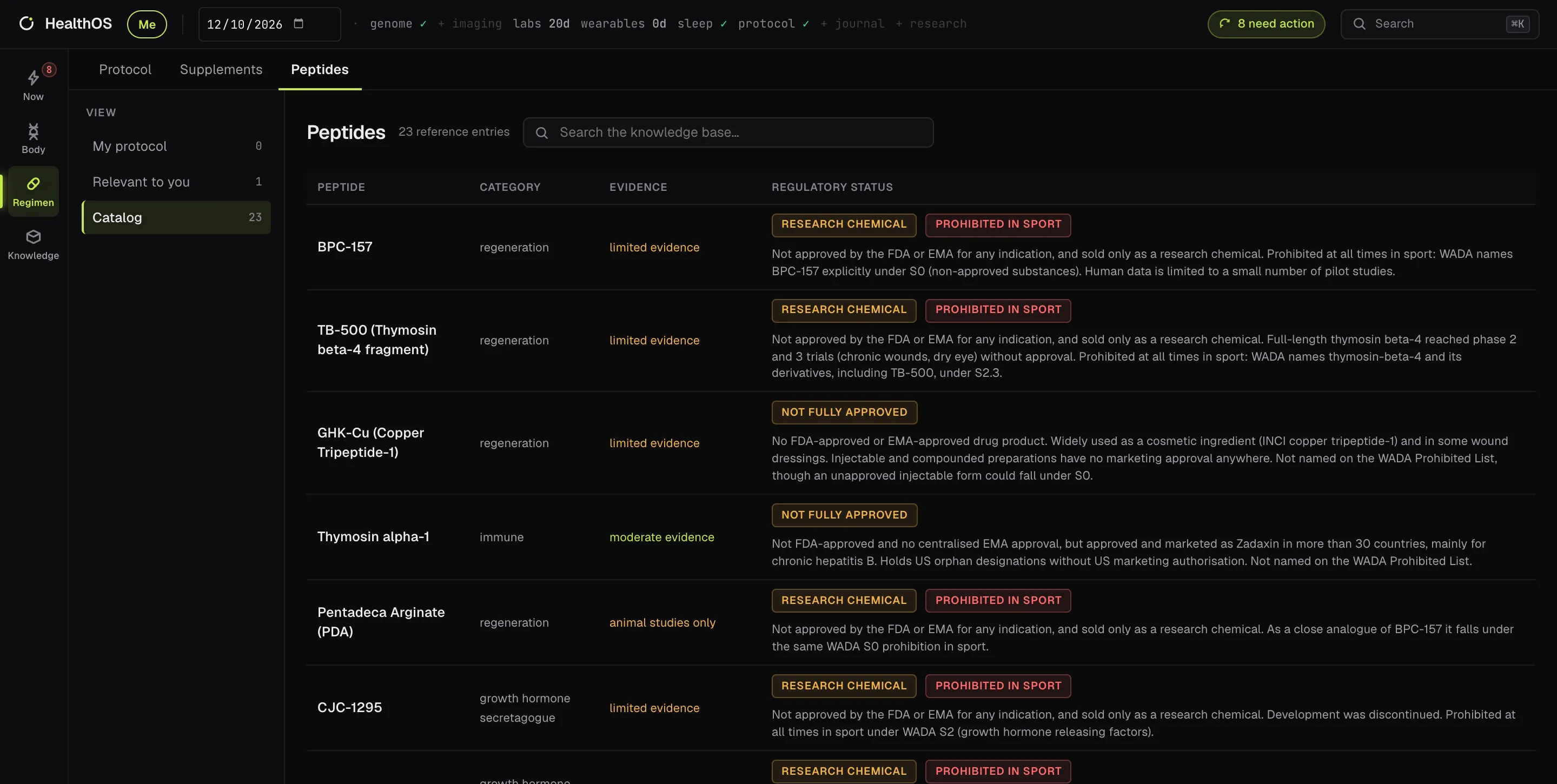
A reference for peptides you're reading about: a curated catalogue with the evidence level and
regulatory status of each, connected to your own labs, DNA and scans where that's relevant.
Needs
Nothing
AI key
Not needed
Sends
The peptide's name to ClinicalTrials.gov, Europe PMC, PubMed, OpenAlex and ChEMBL, when you pull research
Find it
Regimen → Peptides
Regimen · Peptides · Catalog
Three views: My protocol (peptides you take), Relevant to you (peptides linked to your
own labs, genes or scanned body parts) and the full Catalog. Each entry carries its regulatory
status, including whether it's approved anywhere and whether it's banned in sport.
Pull research fetches published trials, papers and lab data for a peptide from ClinicalTrials.gov,
Europe PMC, PubMed, OpenAlex and ChEMBL. It needs no key and costs nothing. This is research and education, not a recommendation to take
anything, and the screen says so.
Knowledge
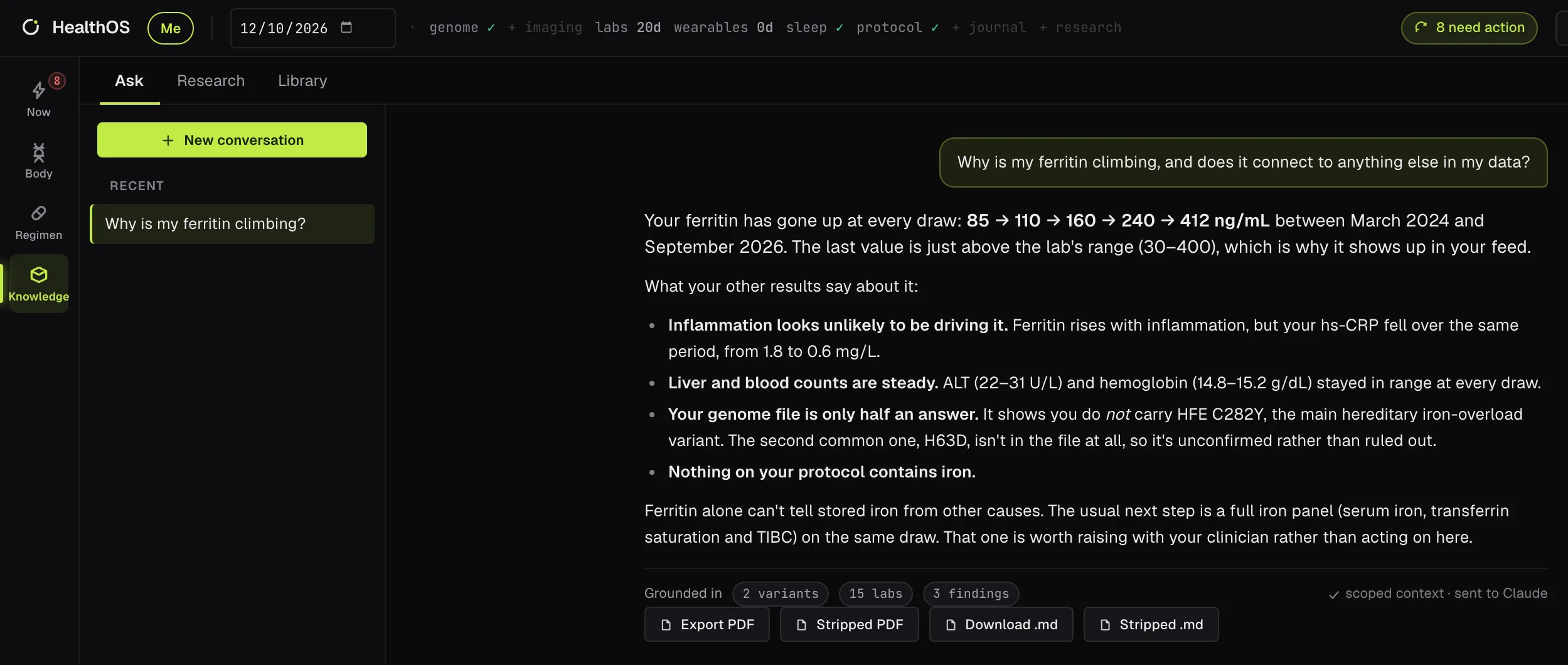
Ask
Ask a question in plain English and Claude answers from your own data. It looks up
only what it needs, says what it drew on, and attributes anything it takes from your notes to whoever
wrote them.
Needs
Any data you've added
AI key
Needed
Sends
Your question and the parts of your data it looks up
Find it
Knowledge → Ask
Knowledge · Ask
An example answer, written for the demo profile.
It looks things up
Instead of being handed your whole record, the chat fetches what each question needs: lab results,
findings, specific variants, your regimen, scans, sleep or your background notes. It can also search the
public research databases, with search words it writes from your question. The pills under each answer
count what it used, and the answer streams in as it's written.
It can record things
Tell it a dose you took or skipped, a change to your protocol, a check-in or a decision on a finding,
and it records it and repeats back exactly what it saved. When it recommends something rather than
being told, it shows a card you apply yourself. It never writes lab values, genetic or sleep data, and
never deletes anything.
It knows the app
Ask how to do something, like adding lab results or setting up the deep genome read, and it answers
from the app's own built-in guide rather than guessing. It can open the right folder for you and run a
scan when you've added files.
Keep and share answers
Conversations are saved on your Mac and you can carry on later. Save any answer as a PDF or
Markdown, or a stripped copy with names and ID numbers removed (which says plainly that it
isn't anonymous). Each fresh answer names the model that wrote it and roughly what it cost.
Library and research
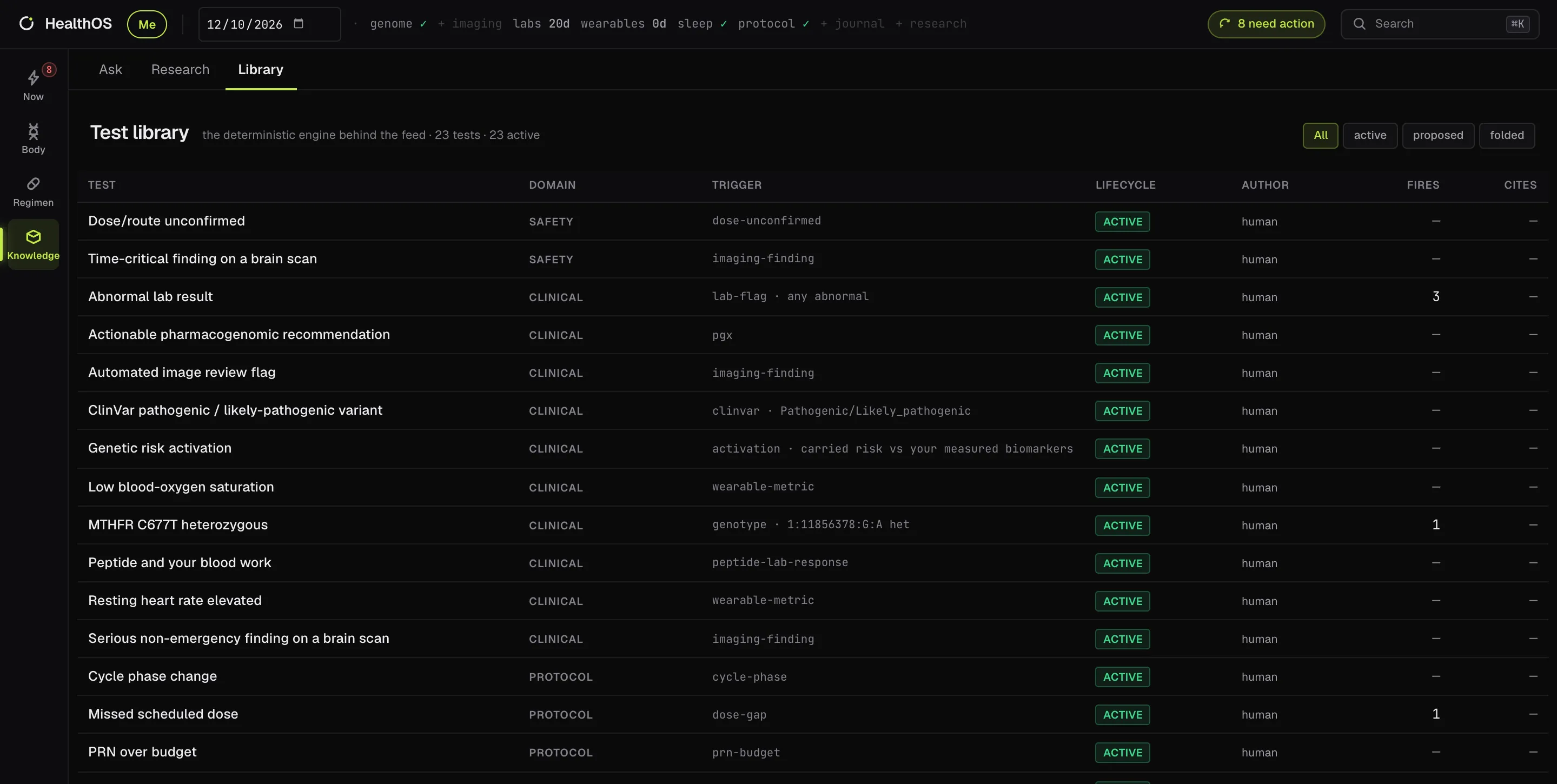
The Library lists every rule behind your feed, so nothing on Now is a black box.
Research keeps the papers you pull, and with a key the app can propose new rules from them.
Needs
Nothing
AI key
For summaries and new rules
Sends
Your search words to ClinicalTrials.gov, Europe PMC, PubMed and OpenAlex; with a key, paper text to Claude
Find it
Knowledge → Library, Research
Knowledge · Library
Every rule, in the open
Each rule shows its tier, what triggers it, whether it's active, who wrote it, how many findings it's
producing right now and which papers it cites. The built-in set covers labs, genetics, imaging,
wearables, your regimen and safety.
New rules, tested first
With a key, Claude can draft a new rule from a background note or from research. Before it goes live
it's run against your own data; it switches on only if it behaves as predicted, and otherwise waits as
proposed for you to look at. AI writes rules; it never runs in the daily check itself.
Research
Search public research databases and keep the papers you pull. With a key, each one gets a short
summary and a relevance rating. If a search couldn't run, the tab says so and names the source, rather
than reporting that nothing was found.
On a friend's Mac, searches reach ClinicalTrials.gov,
Europe PMC, PubMed and OpenAlex. arXiv needs extra tools the installer doesn't include, so the tab lists it
as unavailable.
System
Settings and family profiles
Your keys, which model answers, how closely scans are read, your background notes, the
version history, and separate profiles for the people you look after.
Needs
Nothing
AI key
Not needed
Sends
A key you save, once, to check it with its provider
Find it
System → Settings; profiles top left
Keys and model
Paste an Anthropic key (and optionally a Voyage key, for search by meaning). Each is checked with its
provider before it's saved, so a bad key is rejected on the spot, and Remove stops it at once.
Choose which Claude model answers the chat and which writes new rules, each with a one-line note.
Background notes
Type or paste someone's history or a clinician's summary, and say who wrote it: you, family or a
clinician. The chat reads notes as context and attributes them. A note never becomes a measurement and
never overrides one.
Family profiles
From the menu beside the HealthOS name, add a profile for a family member. Each person gets their own
data folder and their own copy of the engine, and you switch in a click; the menu shows how many items
need action for each person.
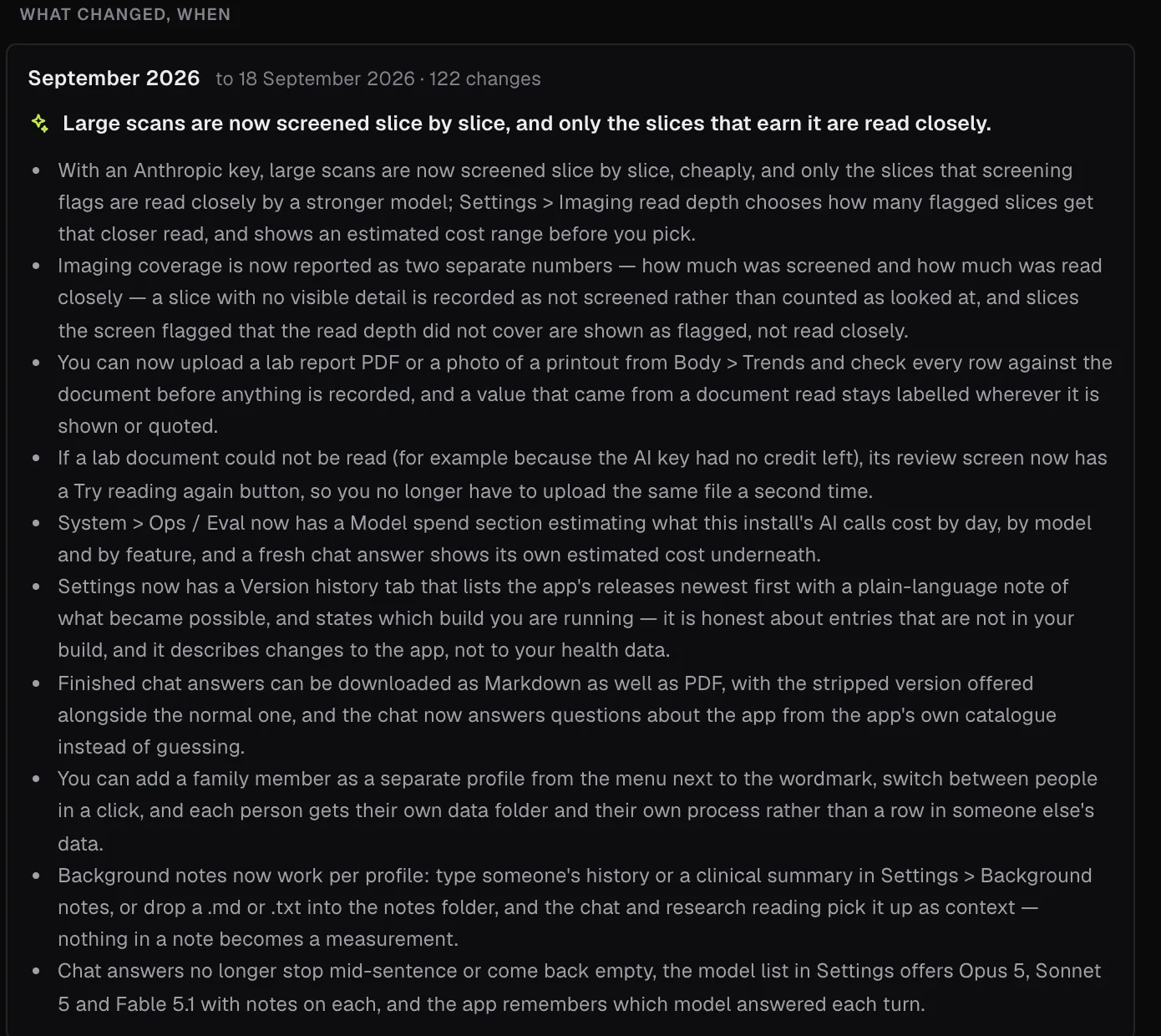
Version history and appearance
A plain-language note for each release, and which one you're running. Switch between dark and light,
or replay the setup intro at any time.
Settings · Version history
Comments and requests
Tell the person who invited you what to fix or add, from whichever screen you're on, and
point at the exact part you mean.
Needs
Nothing to save a comment; your download login to send one
AI key
Not needed
Sends
One comment to the developer through this site,
only when you press Send, after showing you exactly what goes
Find it
The Comment button at the top of every screen, or press c; your list is in
System → Settings → Requests
Point at it
Point at a component highlights whatever is under your pointer; click the card, row or button
you mean (the arrow keys widen or narrow the outline, Esc cancels). The comment remembers the screen and
that part of it, so "this number looks wrong" needs no further explanation.
Save or send
Save keeps it on your Mac. Send to the developer first shows the exact text that will
leave, including any words the highlighted part showed (which can be your own values), with a switch to
leave those out. It's signed with your download username, and you see whether it arrived.
Jobs, checks and costs
Two screens for seeing what the app is doing behind the scenes. Most people never need
them, but they're there when something looks wrong.
Needs
Nothing
AI key
Only for Run checks
Sends
Run checks sends a set of test questions to Claude
Find it
System → Ingestion & Jobs, Ops / Eval
Ingestion & Jobs
Every file the app has picked up, where it came from, and every background job with its status. A
failed job says why, which is usually the fastest answer to "I added a file and nothing happened".
Ops / Eval
Model spend estimates what your AI features have cost, by day, model and feature, at list
prices. Run checks puts a fixed set of test questions through Claude and keeps the results, so
you can see the AI parts are behaving.
Underneath
How it works
A few design decisions explain most of how HealthOS behaves.
It runs on your Mac
The app is a small server and a web page, both on your own machine and only reachable from it. Your
browser talks to it at an address like 127.0.0.1. There's no account and nothing
in the cloud.
One folder holds everything
Your database, the files you added and your settings live in the one folder you picked. Copy it to
back up; delete it and HealthOS forgets everything. Each family profile is a separate folder.
Fixed rules, checked every time
The feed comes from a library of fixed rules that runs whenever new data arrives. The same data always
gives the same findings, and every number traces back to a file you added. AI is used for reading and
writing words, never for deciding what's on your list.
What leaves, and when
Nothing leaves in bulk. The few things that do leave, feature by feature, are listed in full on the
FAQ.
!
Not a doctor.
HealthOS reads your own data and shows you what is in it — never a diagnosis, never a
prescription, and never an all-clear. What you do with it is between you and your clinician.